Setting up the LVL SAFE® Rack Reader connection to BioARCHIVE
The LVL SAFE® Rack Reader can be connected to BioARCHIVE in two ways:
- TCP/IP (via IP address)
- HTTP (via URL)
The selection of the connection type depends on whether you use the software as an on-premise solution on your server or as a SAAS solution on a MEDEORA server. Please refer to the LVL scanner software for the necessary information.
Connection via TCP/IP (IP address)
Prerequisites
- Scanner is accessible in the network
- IP address of the device is known
- TCP/IP interface is activated
Setup in BioARCHIVE
- Open the Administration → Scanner area in BioARCHIVE.
- Select the appropriate rack reader or create a new device.
- Set the connection type to TCP/IP.
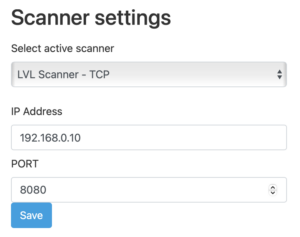
- Enter the following values:
- IP address of the scanner
- Port (if required)
- Save the configuration.
- Carry out a connection test.
Notes
- Firewall rules must release the port used
- The scanner and BioARCHIVE server must be able to reach each other
- Recommended for stable, local network environments
Connection via HTTP (URL)
Prerequisites
- At least the following version of the LVL scanner software is installed on your Windows computer: LVLSafeRead_Installer_v2.0.33.exe. If you have any questions about this software and the scanner, please contact LVL support.
Setup in BioARCHIVE
- Open the Administration → Scanner area in BioARCHIVE.
- Select the rack reader.
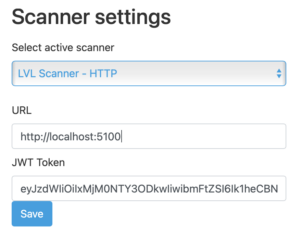
- Set the connection type to HTTP.
- Enter the full URL on the BioARCHIVE software page (e.g.
http://localhost:5100). - Optional: Enter a token if you want to operate the scanner in protected mode. Otherwise, leave the field empty. Only the URL is required to operate the interface.
- Save the configuration.
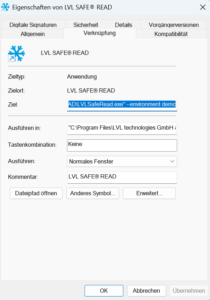
- Open the properties via the desktop link to the LVL scanner software (image 1 below).
- Ensure that the LVL scanner software is started with the following parameter
- (Fig. 2 below):
--environment demo - The complete call is – depending on the installation path – for example:
"C:\Program Files\LVL technologies GmbH & Co. KG\LVL SAFE® READ\LVLSafeRead.exe" --environment demo - Carry out a connection test.
Notes
- The HTTP connection should be used if the scanner is operated as a SaaS service on a MEDEORA online server.
Troubleshooting
If no connection can be established:
- Check network connection (ping / browser test)
- Check IP address or URL
- Check firewall and port shares
- Check scanner configuration
- Restart the device if necessary

